# 🧼Part 2 (flashing bios)
## Flashing Your BIOS (Fortnite & Valorant)
This guide explains how to **downgrade or upgrade your motherboard BIOS** safely.
> ⚠️ **Important:** Flashing your BIOS incorrectly can permanently damage your motherboard. Follow each step carefully.
***
## Important (Please Read)
Before starting, read the following carefully:
* In **every case**, always **downgrade first**.
* If you are using an **ASUS motherboard**, make sure you **downgrade to a BIOS version from before 2022**.
* If you already have the **lowest available BIOS version** and cannot downgrade further, you may proceed by **upgrading only one version at a time**.
> ❗ **Warning:** Never jump multiple BIOS versions unless the manufacturer specifically instructs you to.
***
## Step 1 — Identify Your Motherboard
You need to know your motherboard model before downloading a BIOS update.
#### How to check
1. Open the **Windows Search Bar**
2. Search for **System Information**
3. Open the application
4. Locate the following fields:
* **Baseboard Manufacturer**
* **Baseboard Product**
Example:
```
Baseboard Manufacturer: ASRock
Baseboard Product: B550M-C
```
> 💡 **Tip:** Write these down or copy them somewhere so you don’t forget.
***
## Step 2 — Download the BIOS Update
1. Open your **web browser**
2. Search for your motherboard using the information from **System Information**
Example search:
```
ASRock B550M-C
```
3. Open the **official manufacturer website**
4. Navigate to the **Support** or **Downloads** section
5. Locate **BIOS** or **Drivers**
> ℹ️ Sometimes the section will only say **BIOS** instead of **BIOS/Drivers**.
6. Download a **BIOS version that is newer or older than your current version** depending on whether you are upgrading or downgrading.
***
## Step 3 — Prepare Your USB Drive
Before placing the BIOS file on your USB drive:
1. **Back up any important files** on the USB
2. Format the USB drive to **FAT32**
> ⚠️ Formatting will erase everything on the USB drive.
***
## Step 4 — Format USB to FAT32
#### Method 1 — Using Windows
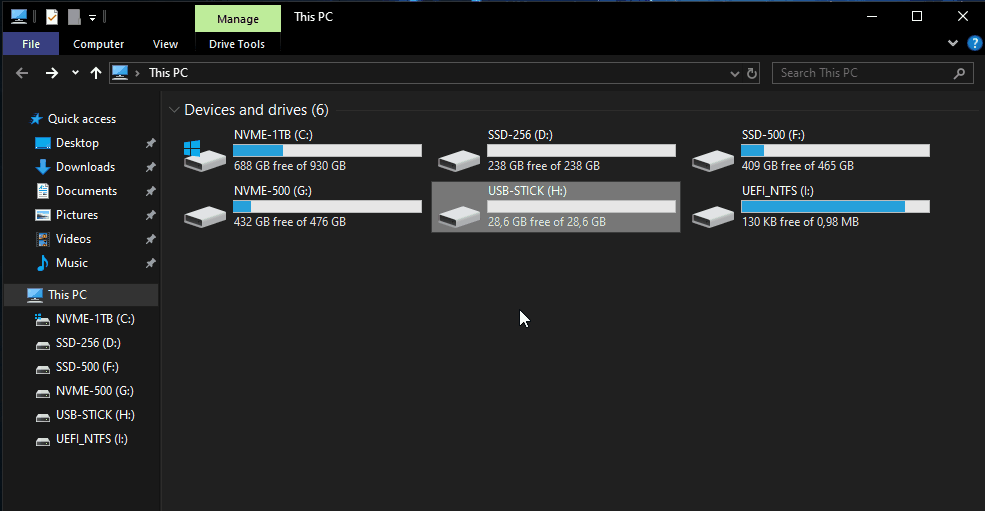
1. Insert your USB drive
2. Right click the USB drive
3. Click **Format**
4. Select **FAT32**
5. Click **Start**
***
#### Method 2 — Using GUIFormat (if FAT32 is unavailable)
Some USB drives larger than **32GB** will not allow FAT32 formatting in Windows.
If this happens:
1. Download [**guiformat.exe**](https://workupload.com/file/MF745jwtbCP)
2. Run **guiformat.exe as Administrator**
3. Select your **USB drive**
4. Leave the default settings
5. Click **Start**
6. Wait until the process finishes
✅ Your USB drive is now formatted to **FAT32**.
***
## Step 5 — Extract BIOS Files to USB
1. Locate the **downloaded BIOS ZIP file**
2. **Extract the files**
3. Copy the **BIOS file(s)** to the **root of the USB drive**
> 💡 The BIOS file should **not be inside folders** unless the motherboard manufacturer specifically instructs otherwise.
***
## Next Step
After the BIOS file is on the USB drive, you can proceed to **flashing the BIOS from the motherboard BIOS/UEFI menu**.
#### Flashing the BIOS
1. Restart and enter BIOS usually during startup by pressing F2, F12, or Del.
2. Find BIOS update option (e.g., EZ Flash, M-Flash).
3. Select USB drive with BIOS file.
4. Confirm and wait for completion.
5. Repeat process once more with the same file. Help Videos for your motherboard and actually how to flash on that motherboard
ManufacturerLink
Acer
ASRock
ASUS
Gigabyte
MSI